 By Clara WinslowChocolate, confectionery trends, sensory evaluation
Puma Payment Failure Checks Before Reordering
When the payment page shows a failure, don't immediately resubmit the same Puma order. The safer approach is to first confirm the payment currency, payment method, available balance, and whether an order has already been generated, then decide whether to retry. This reduces the risk of duplicate charges or creating multiple identical orders. 
When the payment page shows a failure, don't immediately resubmit the same Puma order. The safer approach is to first confirm the payment currency, payment method, available balance, and whether an order has already been generated, then decide whether to retry. This reduces the risk of duplicate charges or creating multiple identical orders.
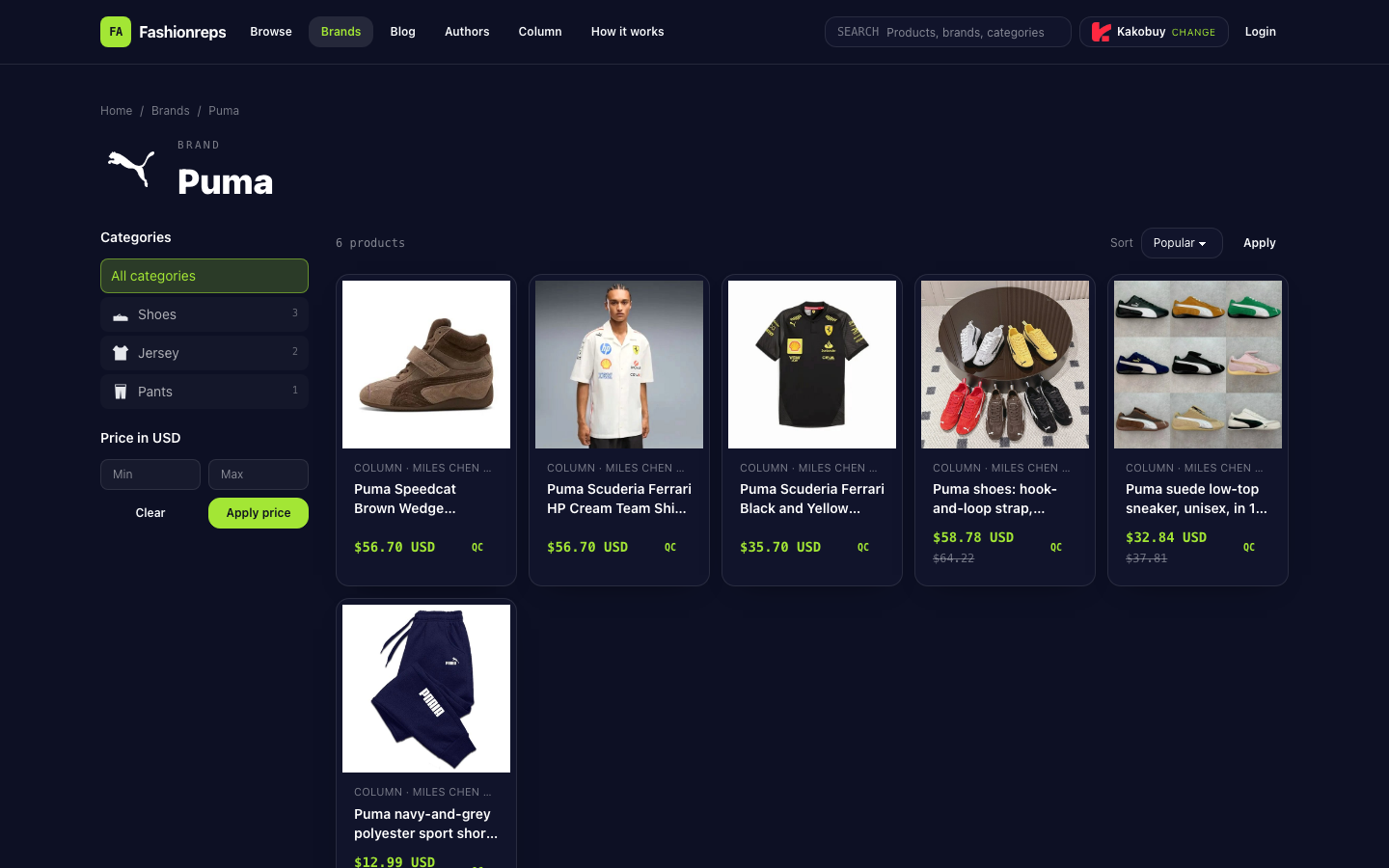
fashion-reps' Puma product page displays product information, reference prices, and available shopping agent entry points. Orders, payments, and shipping are handled by external agent websites, so the specific failure message, order status, and support channels after a payment failure should be based on the current selected agent's page records. This article only discusses the troubleshooting sequence after payment submission, and does not infer that a particular agent currently has a system failure, nor does it promise refund or arrival times.
Save Records Before the Payment Failure
Before closing the page or taking further action, save the following information:
- Puma product page or product link.
- Product name, color, size, and the reference price shown on the page.
- The name of the shopping agent you selected.
- Order number in the order draft or shopping cart.
- Currency, amount due, and payment method displayed on the payment page.
- Complete failure message text, and the time it appeared.
- Whether any authorization, deduction, or pending transaction appears in your bank, payment app, or credit card account.
If the page did not generate an order number, record that as well. Not having an order number does not mean no payment authorization occurred; you still need to check the payment tool's transaction records and the agent website's order page to confirm.
Step 1: Confirm Whether an Order Has Been Generated
First, log in to the agent website you are using, and check the order list, pending payment orders, and payment records. Focus on distinguishing among three states:
- No order record, and no authorization or deduction record from the payment tool.
- An order has been generated, but it still shows pending payment or payment failed.
- The order page status is unclear, and the payment tool shows a pending or authorized transaction.
Only when the order does not exist and the payment tool has no authorization or deduction record is it appropriate to consider recreating the payment process. If an order or payment record already exists, do not place another order directly from the product page, to avoid submitting the same product multiple times.
Step 2: Check the Payment Currency and Amount
Compare the currency shown on the order page, payment page, and payment tool. Don't just look at whether the numbers are the same, because the same number represents different amounts in different currencies. Also check:
- Whether the payment page clearly displays the currency.
- Whether the payment tool supports the currency used for this transaction.
- Whether the bank or payment app requires additional confirmation for cross-border or foreign currency transactions.
- Whether the final amount on the payment page matches the order page.
- Whether the product amount or other order amounts were recalculated during the payment process.
The Puma price on the source page is a reference price displayed on the product page, and cannot be used to infer the final amount due, fees, shipping, or exchange rate. If a new amount appears on the payment page, it should be based on the agent website's current order page, and save the page record.
Step 3: Check Balance, Limits, and Payment Method Status
If the order status is clearly pending payment or payment failed, but there are no other abnormal records, check the payment tool itself:
- Whether the available balance is enough to cover the amount shown on the payment page.
- Whether the single transaction, daily, or cross-border payment limit is sufficient.
- Whether the card or account has expired, been frozen, or requires re-verification.
- Whether the payment app requires login confirmation, SMS verification, or additional identity verification.
- Whether you are using a method supported by the agent website's current payment page.
Don't assume insufficient balance based on a single failure. Only when the payment tool page clearly shows reasons related to balance, limits, or verification can it be considered a more reliable cause. Otherwise, treat it as something to be confirmed.
Step 4: Check for Duplicate Submissions
If you have clicked the payment button multiple times, refreshed the page, or opened the same order in different tabs, pause and check:
- Whether multiple orders for the same product appear in the order list.
- Whether multiple authorizations, pending transactions, or deductions appear in the payment tool.
- Whether transaction receipts have been generated in email, site notifications, or the payment app.
- Whether the original payment page is still processing, rather than having clearly failed.
If any unclear payment record appears, do not click payment again. Organize the order number, transaction time, amount, currency, and payment receipt, and contact the current agent's official payment support channel to ask about the status.
Use Records to Decide the Next Step
| Verification Result | Recommended Action |
|---|---|
| No order, no payment authorization or deduction record | Reopen the current agent's payment process, recheck currency and amount, then submit |
| There is a pending payment order, but no payment record | Continue processing from that order page first, do not create a new order for the same product |
| There is payment authorization, pending, or deduction record, but order status is unclear | Stop retrying, contact the agent's official payment support to confirm whether payment has been received |
| Multiple identical orders or multiple payment records | Stop all duplicate operations, keep all receipts and request the agent to check |
| Failure reason only shows as a generic error | Don't guess the specific cause, provide the agent with the complete error message and order record |
When to Stop Retrying
Stop resubmitting payment when you encounter the following:
- The payment tool already shows authorization, pending, or deduction record.
- There is already an order for the same product in the order list.
- The page shows the order has been generated, but the payment status has not synced.
- Different error messages appear after repeated attempts.
- The amount, currency, or order number on the payment page is inconsistent before and after.
- The page asks you to make additional payment through unfamiliar channels not from the current agent or to provide sensitive payment information.
Stopping retries does not mean the order will definitely succeed or fail, but rather that the current information is insufficient to judge safely. In this case, confirm through the official help or payment support entry listed on the current agent website, and do not handle payments based on unverified contact information from search results.
What to Submit to Official Support
When contacting agent support, provide verifiable information in one go as much as possible:
- Agent account information, and order number or order draft number.
- Puma product name and product page record.
- Payment time, amount, and currency.
- Payment method used, but do not send full card numbers, verification codes, passwords, or private keys.
- Screenshot or text of the complete error message.
- Authorization, pending, or deduction status shown by the payment tool.
- Steps you have already tried, and whether you submitted duplicates on other pages.
Ask them to clearly answer three questions: whether the order has been generated, whether the payment has been received, and whether it is currently safe to pay again. If they cannot confirm the status based on the order number or transaction records, continue to pause, and do not replace status verification with new payment attempts.
Conclusion
When a Puma product payment fails, the troubleshooting sequence should be: order status, payment records, currency and amount, balance and limits, and finally consider retrying. Seeing only a generic failure message is not enough to determine whether the cause is balance, exchange rate, or agent system. As long as there are pending payments, deduction records, duplicate orders, or status desynchronization, stop repaying and confirm through the current shopping agent's official payment support channel.